Website · Setup tutorial · Weibo

 Douyin · GetSayAll Save this image, then scan it in Douyin |
 Xiaohongshu Scan to follow SayAll |
“Possibly the least tool-like tool I have used lately” shows how SayAll App turns a Bluetooth voice remote into a new way to express ideas, control your Mac, and work with AI. The video is in Chinese.

Click the cover or watch the original video on Bilibili
Video by 可乐不甜的跑焦日记
3D-printed Xiaomi Bluetooth Remote 2 Pro shell by the same creator: View it on MakerWorld
The first Windows preview of SayAll is now available, focusing on the essential features:
- Supports Xiaomi Bluetooth Remote 2 and 2 Pro.
- Voice input currently supports only WeChat Input Method.
- The voice-input shortcut is
Ctrl + Win.
You are welcome to try it. In principle, the Windows version of SayAll should not trigger warnings from game anti-cheat or antivirus software. If you have concerns, scan the source code with an AI tool before installing it.
iOS release: SayAll on the App Store
The Mac app continues to be distributed directly. Mac App Store submission is paused, while the current App Store launch focus is the iOS app and its Apple Watch app.

SayAll does more than listen. It also acts and helps you remember.
Speak to type. Press once to do more. Revisit what you said.
SayAll is a macOS app that turns a compatible Bluetooth voice remote into a wireless microphone for your Mac. It starts with effortless voice input, then connects common actions, app-specific button profiles, and the words you explicitly choose to keep.
SayAll is built natively with SwiftUI. While running in the background, it uses less than 0.5% CPU and around 50 MB of memory—lighter than a single Chrome tab.

Hold to speak and release to stop. Add text to the app you are using without interrupting a meeting or pausing your music. SayAll does not automatically change the Mac's default input or output devices.
Action sequences can run several supported local steps in order, then bind them to a click, double-click, or long press. They are designed for stable, repeatable workflows—not arbitrary scripts, unlimited automation, or remote execution.
One remote can keep multiple complete button profiles. Switch them manually or explicitly enable matching by the active app; unmatched apps return to the default profile. Full validation with physical remotes and third-party apps is still in progress.
After you enable Revisit, SayAll keeps only final text entered through SayAll and organizes it by app and date on this Mac. Local Agent Access can then create separate, revocable, read-only MCP authorization for each AI client.
- Revisit and Local Agent Access are off by default.
- No audio, complete conversations, other people's replies, or surrounding text is stored.
- There is no cloud sync or cross-device sync.
- MCP uses local
stdioand opens no HTTP or TCP listener. - SayAll does not upload Revisit data, but a third-party AI client may send retrieved text to its cloud model.
Common Phrases and Apple Siri Remote support require membership. For Siri Remote, install its component through the PKG first. Then enable it in the app with valid membership access. Installing the component does not enable it automatically.
- Apple Silicon Mac with macOS 14 or later, or Intel Mac with macOS 13 or later
- Xiaomi Bluetooth Remote 2 or 2 Pro
- For voice input, install the compatible microphone included with the installer, or use an existing loopback device such as BlackHole 2ch.
-
Backup download: Baidu Netdisk. Access code:
9qhx. -
Setup tutorial: Open the website tutorial.
-
Latest stable release (Apple Silicon): download it through the permanent Cloudflare CDN entry. The current stable entry provides only the Apple Silicon package and does not change between versions.
-
Latest pre-release (Apple Silicon / Intel): open GitHub Releases, find the newest macOS candidate marked Pre-release in the release list, and download the Installer PKG for your Mac architecture.
Release assets use the version and Build in their names: SayAll-VERSION-BUILD-AppleSilicon-install.pkg for Apple Silicon and SayAll-VERSION-BUILD-Intel-install.pkg for Intel. They are not interchangeable. The matching uninstallers are SayAll-VERSION-BUILD-AppleSilicon-uninstall.pkg and SayAll-VERSION-BUILD-Intel-uninstall.pkg.
Run the matching Installer PKG. It installs SayAll.app and checks the existing MiRemoteV 2ch. A healthy compatible driver is kept in place; a missing or unusable driver is installed or updated. The installer shows the same privacy policy as the official website after the Introduction; you must complete that system confirmation before installation can continue. Advanced users who need only the app can download the app-only ZIP from the same Release.
Starting with v1.3.0, official release packages are signed with an Apple Developer ID and notarized by Apple. Download through the official Cloudflare CDN entry, this project's GitHub Releases, or the Baidu Netdisk backup link above. Verify the GitHub asset digest or the PKG signature.
- Turn on Bluetooth in System Settings.
- Hold the remote Home and Menu buttons together to enter pairing mode.
- Pair the device named MI RC, Xiaomi Bluetooth Remote 2 Pro, or 小米蓝牙语音遥控器.
- Launch SayAll and grant Bluetooth access when asked.
- To customize ordinary buttons, also grant Input Monitoring and Accessibility. Restarting the app is required only after changing those macOS permissions.
Device cards in Connection & Voice and Button Mapping prefer the custom name from macOS Bluetooth settings. Duplicate names are numbered from 1; unnamed devices keep their existing model numbering. After renaming, return to SayAll or reopen the relevant page to refresh. Offline devices keep their last known name. System name synchronization currently covers Xiaomi and Apple remotes; standalone system API checks have passed on A2854, while full compatibility of the candidate app still awaits validation.
The menu bar icon is dimmed when no device is connected and remains clickable. An active connection from a physical remote, iPhone, Apple Watch, or web remote restores its normal appearance; voice transmission uses the active icon. Hover to read the current status. A connection does not mean audio or input permissions are ready.
SayAll appears in the Dock and remains in the menu bar after launch:
- Click the Dock icon to open Settings.
- Left-click or right-click the menu bar icon to show the same status menu.
- Open the menu to see the remote’s battery level below the connection status. When several remotes are connected, the menu identifies each reading by name.
- Choose Open Main Window… at the top to open or activate the main window. Connection status, reconnect, logs, About, version, update, GitHub, language, and Quit actions remain below it.
SayAll opens its main window by default on ordinary launches. The About page at the bottom of the Settings sidebar provides version, update, version history, glossary, GitHub, language, Dock display, and launch controls. Turn off Open main window at launch to keep ordinary launches in the menu bar; an update relaunch still opens the main window unconditionally. Turn off Show app icon in the Dock to keep SayAll available only from its menu bar entry; the Dock icon can be restored from the same page.
App Language displays System Default, 简体中文, and English together. The settings window, status text, menu, and built-in help follow the selection. System permission prompts and third-party panels continue to use the language selected by macOS when they are next opened.
The app checks for updates once per day and asks before installing a newer version; it does not silently download or install updates. Check for Updates… is available from both the About page and the right-click menu. Check for pre-release updates on the About page is off by default; when enabled, automatic and manual checks also include the latest GitHub pre-release candidate. Sparkle updates the app bundle only; the compatible microphone driver is managed by the standalone Installer PKG. If an older installation still uses the Remote Mic.app or 无线麦.app path, an in-app update keeps that existing path. Run a new Installer PKG once to migrate it to the canonical SayAll.app filename.
- Open Connection & Voice.
- Select Refresh Audio Devices.
- Select MiRemoteV 2ch, or another loopback device you already installed.
- Choose the same device as the microphone in the app that receives dictation or voice input.
- Click the target text field, hold the remote voice button to speak, then release it to finish.
Under Button Mapping, the voice-button area lets you choose the default Fn/Globe behavior, a Left Command hold, a Right Command hold, or a Right Option hold. Modifier-key modes require SayAll Accessibility permission and press the selected key when voice starts, then release it when voice ends. The target voice app must support that standalone key; many apps merge both sides into a generic modifier, so verify the target app directly. Pressing another key while the modifier is held may trigger a modifier shortcut. Right Option is the least-used modifier, making it a good dedicated voice trigger, and several voice input tools accept it as their trigger key.
Fn remains the default because it directly matches Fn-hold voice entry in apps such as Doubao and Weixin, Fn-tap entry in Typeless, and the remote's hold-to-capture/release-to-stop lifecycle. F18, F19, F20, or other uncommon keys could be added technically, but this version does not offer an arbitrary voice-key binding: the target voice app must use the same key, and RC003, iPhone, Apple Watch, Web, permissions, and input-source switching must all share one paired press/release lifecycle. Ordinary remote buttons can still use F1–F20 shortcuts.
The voice button has no single-tap, double-tap, or long-press side effects. It is reserved for the low-latency press-to-start and release-to-stop voice session. To focus the frontmost app's input field, choose Focus Input Field under a normal button's Custom Actions; it uses macOS Accessibility and never reads the field contents.
To confirm the audio path, send a one-second test tone or inspect input level in QuickTime Player's New Audio Recording window.
Tap-to-toggle voice tools such as Typeless are incompatible with the Xiaomi Bluetooth Remote 2 and 2 Pro's default Fn-hold behavior. Enable Simulate Fn Tap on Voice Key in the voice-button area under Button Mapping to send one Fn tap when the voice stream starts and a matching tap after queued audio drains. Typeless and SayAll must still select the same loopback device, and SayAll needs Accessibility permission.
You must still hold the Xiaomi Bluetooth Remote 2 or 2 Pro voice key while speaking and release it to finish. Both remote firmwares stop microphone audio when the key is released, so this is not continuous or hands-free recording. The mode is off by default; keep it off for Fn-hold tools such as Doubao Input Method. Missing permission or incomplete remote HID mapping automatically disables the mode and restores the default Fn-hold mapping.
If Doubao Input Method cannot see an ordinary virtual microphone, install MiRemoteV 2ch with Install SayAll.pkg, then select it in SayAll. See the Doubao Input Method Compatibility Guide.
Remotes differ in how they record: the Xiaomi remote only records while held; the Chromecast voice remote also supports "tap once to start, tap once more to stop"; the Siri Remote adds a touch surface. Voice tools differ too: some record while a key is held, others toggle on a tap. Mismatched pairs show up as "pressing once to stop does not end recording" or "recording ends right after it starts".
The capabilities of every remote and voice tool, and the mode each combination needs (including whether Simulate Fn Tap on Voice Key should be on), are listed in the Remote and Voice Tool Capability Matrix (in Chinese).

Open Button Mapping and enable custom mapping to change direction, OK, Back, Home, Menu, TV, Power, and volume buttons.
Each ordinary button supports a single-click action and optional double-click and long-press actions. Available actions include keyboard input, system volume, playback control, launching installed apps, focusing the frontmost input field, and custom keyboard shortcuts. A shortcut can be chosen from common combinations such as Copy, Paste, and Spotlight, assembled from an on-page standard keyboard with modifiers, F1–F20, navigation keys, a numeric keypad, or standalone left/right modifiers, or recorded from a physical keyboard as before.
Open Custom App lets you select any local .app, then either open it only, send its focus shortcut after activation, or record a target input field once and focus it automatically. Re-record the target if an app update changes its interface. SayAll does not use fixed screen coordinates or save text from the input field.
- Without double-click or long-press configuration, single-click keeps its immediate response and hold-to-repeat behavior.
- A double-click waits about 0.3 seconds so the app can distinguish a single click.
- A long press triggers after about 0.55 seconds and suppresses the single-click action.
- Buttons with a configured double-click or long-press do not hold-repeat, preventing multiple actions from firing at once.
The voice button is always reserved for voice input and does not participate in ordinary button mapping; choose Fn/Globe, Left Command, Right Command, or Right Option hold in its dedicated area.
The Statistics page shows remote button presses, voice duration, and the longest individual voice sessions for the selected day, week, or all-time range. All statistics stay on this Mac and are never uploaded.

After explicit user consent, SayAll can expose local Reflections history as read-only data to Codex, Claude Code, Cursor, OpenCode, and other clients through the bundled Swift MCP Helper. No Node.js or development runtime is required.
For AI-assisted installation, consent, client connection, and verification, give the agent the AI Installation and MCP Setup Guide.
- Bluetooth: connect to the remote and receive voice.
- Input Monitoring: identify ordinary remote buttons.
- Accessibility: send mapped button actions to the active app.
SayAll does not upload or store voice, does not change the system default input or output device, and does not log voice content, Bluetooth addresses, or peripheral identifiers.
- Quit SayAll.
- Download and run the architecture-matching uninstaller whose name contains the current
VERSION-BUILDfrom the same GitHub Release.
Uninstalling the compatible microphone does not change or remove BlackHole.
When installing over an older release, the installer recognizes legacy /Applications/Remote Mic.app and /Applications/无线麦.app bundles only when their bundle identifier is com.hd838a.RemoteMic. After the new SayAll.app has been installed and verified, matching legacy bundles are moved to Trash with collision-safe names so they remain recoverable. If Trash is unavailable, or a bundle at either legacy path is unrelated, it is left untouched.
Read the Troubleshooting Guide first. The complete onboarding flow is in the First-Install Guide.
Before developing any new feature, everyone—including the repository owner, maintainers, external contributors, and automated agents—must read and follow the canonical New Feature Development Policy.
For development, build, protocol, test, and release details, see the Technical Documentation. Branch and pull-request management is defined in the Branch and Commit Management Policy.
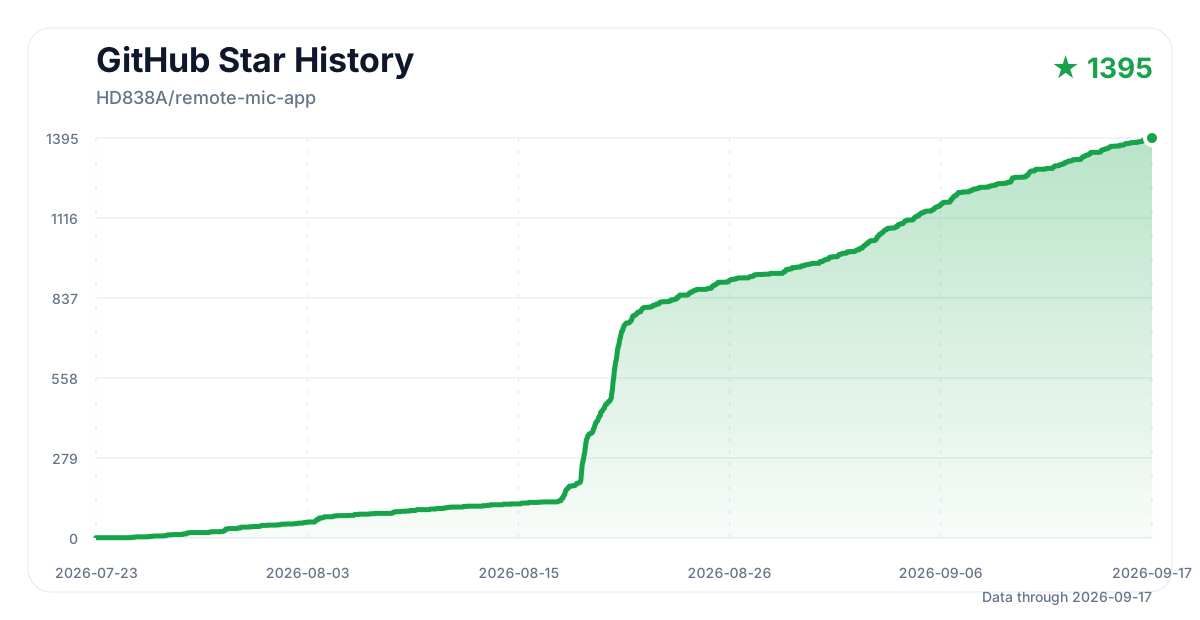
The macOS app, driver, and related software code in this repository are GPL-3.0-only. The iOS app is now maintained in a separate private repository and continues to be distributed through the App Store link above. The macOS app logo and app icon are proprietary brand assets that require a separate grant; see LOGO-LICENSE.en.md. Full copyright and third-party information is available in COPYRIGHT.en.md and THIRD_PARTY_NOTICES.md.
The project was originally forked from nijez/open-voice-bridge and is now maintained independently in this repository.
The MiRemoteV 2ch naming and USB-transport compatibility approach for Doubao device enumeration were informed by VincentKingHsu/MiRemoteVoice v1.0.0-beta.1 (MIT). This project does not reuse that project's binary replacement script. Instead, it independently derives MiRemoteV2ch.driver from ExistentialAudio/BlackHole v0.7.1 at commit e2b22aaaba4e507a097131704bf96dabc004d9cf under GPL-3.0. The driver has a separate identity, coexists with BlackHole, and never overwrites or removes BlackHole files.